
🖼️ Uncensored AI Studio
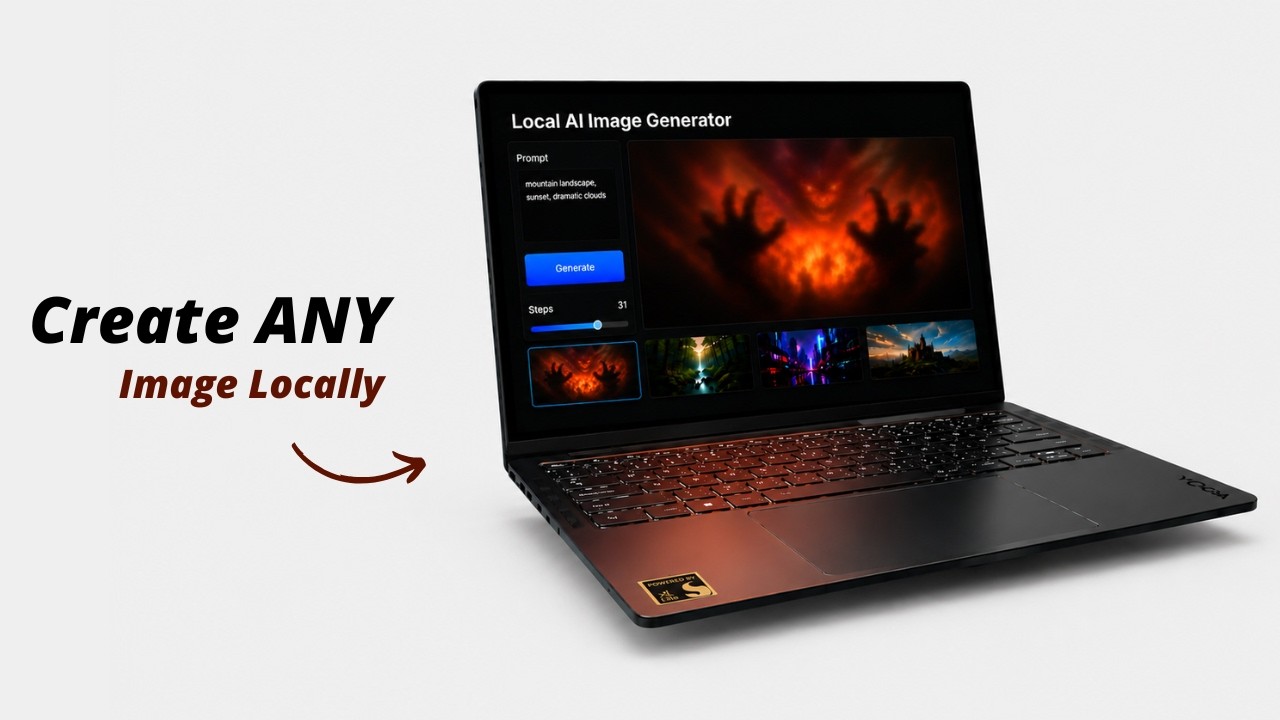
A premium, zero-configuration local AI studio and offline GUI for Stable Diffusion (Image Generation), LLMs (Chat), Whisper (Speech-to-Text), and Kokoro (Text-to-Speech). Powered by hardware-accelerated GPU and NPU execution on Windows, Linux, and macOS.



🎥 Watch the Setup & Demo Video: https://youtu.be/ESELhY-G_9w
📖 Table of Contents
- What is Uncensored AI Studio?
- Key Features
- Workspace & Engine Architecture
- Folder Architecture
- Getting Started
- Hardware Compatibility & Acceleration
- Troubleshooting & FAQ
- Building From Source
- Licensing
📖 What is Uncensored AI Studio?
Uncensored AI Studio is a completely offline, zero-setup, self-contained AI studio for Windows, Linux, and macOS. Unlike cloud-based AI systems, it runs entirely on your own hardware with no censorship, tracking, subscriptions, or login requirements.
It unifies four major local AI capabilities into one high-performance desktop interface:
- 🎨 Image Generation (Stable Diffusion): Generate and edit high-quality images offline using
.safetensors,.gguf, or.ckptmodel weights. - 💬 Text Chat (LLMs): Converse privately with open-source language models (GGUF format) powered by official, high-performance
llama.cppbackends. - 🎙️ Speech-to-Text (Whisper): Transcribe voice recordings and speech to text in real-time with an integrated
whisper.cppengine. - 🗣️ Text-to-Speech (Kokoro TTS): Convert text outputs into highly natural, lifelike vocal audio offline using the
Kokoro-82MONNX model.
🌟 Key Features
- 100% Offline & Private: Run inferences locally. No internet, telemetry, cloud logging, or API keys required.
- Zero-Install Portability: Entire runtime (Node.js, models, GPU backends) is self-contained. Zero global system environment changes.
- Auto-Configured Acceleration: Auto-detects hardware specs to load CUDA (Nvidia), ROCm (AMD), Vulkan (Intel/AMD/NVIDIA), Metal (macOS), or OpenVINO (Intel NPU) backends.
- Integrated Model Manager: Paste Hugging Face URLs to download weights directly, or drag-and-drop local weights to import them.
- Live Performance Monitor: Track CPU, RAM, GPU, and VRAM utilization in real-time directly inside the web UI.
- Local Output Gallery: Saves generated images side-by-side with prompt parameters and metadata JSON files.
⚙️ Workspace & Engine Architecture
To avoid exhausting system RAM or VRAM, text and image engines are mutually exclusive by default. You can switch between workspaces inside the UI:
- Image Generation Workspace: Uses a dedicated
stable-diffusion.cppbackend node. Model weights are stored inapp/models/. - Text Chat Workspace: Uses a portable
llama.cppserver backend. Model weights (.gguf) are stored inapp/llm-models/. A small Qwen2.5 Coder starter model can be downloaded directly from the Text Chat panel. - Speech Worker (Whisper): Runs a localized
whisper-cliprocess to convert your vocal input to text. - Audio Output (Kokoro TTS): Utilizes
kokoro-jslocally on the server side to read responses in natural voices.
📁 Folder Architecture
Uncensored-AI-Studio/
├── windows.bat                # Windows Launcher (Double-click entrypoint)
├── linux.sh                   # Linux Launcher (Terminal entrypoint)
├── mac.sh                     # macOS Launcher (Terminal entrypoint)
├── LICENSE                    # MIT Open Source License
├── .gitignore                 # Excludes models and output images from version control
├── README.md                  # Detailed system documentation
├── scripts/
│   ├── setup/                 # Platform setup and backend installers
│   ├── reset/                 # Clean install & environment repair
│   ├── server/                # UI web server and backend lifecycle manager
│   ├── workers/               # Local worker processes
│   ├── build/                 # Optional source build helpers
│   └── config/                # Runtime configuration catalogs
└── app/
    ├── frontend/              # UI source code (Vite + React)
    ├── models/                # Place image weights here (.safetensors, .gguf, .ckpt)
    ├── llm-models/            # Place text GGUF weights here
    └── outputs/               # Saved images and parameters metadata
🚀 Getting Started
Ensure you have a modern web browser installed. Follow the quick guide below for your platform:
Windows Setup
- Launch: Double-click
windows.bat.Note
On the first run, the script will automatically download a portable Node.js runtime and configure pre-compiled GPU/CPU backend binaries.
- Add Models: Drop
.safetensors,.gguf, or.ckptweights intoapp/models/(or download them via the Model Manager tab in the UI). - Generate: Open
http://localhost:1420in your browser, select your model, and write a prompt.
Linux Setup
- Make executable: Open a terminal in the project folder and make the script executable:
chmod +x linux.sh - Launch: Run
./linux.sh.- NVIDIA GPU Users: You will be prompted to set up the high-performance CUDA backend (downloads prebuilt or automatically compiles from source as a fallback).
- AMD Radeon Performance: Run with
./linux.sh --max-perfto add the ROCm backend (~1.3 GB download). - Intel Core Ultra NPU: Run with
./linux.sh --setup-openvinoto configure Intel NPU support (requires Intel Linux NPU driver).
- Add Models: Drop your weights into
app/models/or download them via the Model Manager tab. - Generate: Open
http://localhost:1420in your browser.
macOS Setup
- Make executable: Open a terminal in the project folder and make the script executable:
chmod +x mac.sh - Launch: Run
./mac.sh.Important
The prebuilt macOS backend is optimized for Apple Silicon (M1 or newer) and uses Metal GPU acceleration. (macOS Intel hardware is completely unsupported).
- Add Models: Drop your weights into
app/models/or download them via the Model Manager tab. - Generate: Open
http://localhost:1420in your browser.
🖥️ Hardware Compatibility & Acceleration
Windows
| GPU Vendor | Tech | Status | Notes |
|---|---|---|---|
| Nvidia | CUDA | ✅ Native | Maps sd-cuda.exe with Nvidia SDK 12 optimizations. |
| AMD Radeon | Vulkan | ✅ Native | Maps sd-vulkan.exe with Vulkan API acceleration. |
| Intel Arc | Vulkan | ✅ Native | Maps sd-vulkan.exe for Intel hardware. |
| Integrated / None | CPU | ⚠️ Fallback | Runs on logical CPU threads (slow). |
Linux
| GPU Vendor | Primary | Fallback | Notes |
|---|---|---|---|
| NVIDIA | CUDA / Vulkan | Vulkan / CPU | Auto-detects NVIDIA. Prompt-driven CUDA setup downloads prebuilt or compiles from source. Falls back to Vulkan for GTX. |
| AMD Radeon | ROCm | Vulkan | ROCm provides best AMD performance when host ROCm drivers are available. |
| Intel Arc / integrated | Vulkan | CPU | Cross-vendor Vulkan support. |
| Intel Core Ultra NPU | OpenVINO NPU | CPU | Requires the Intel Linux NPU driver, kernel 6.6+, Python 3, and ./linux.sh --setup-openvino. |
| Integrated / None | CPU | — | Runs on logical CPU threads (slow). |
macOS
| Hardware | Primary | Fallback | Notes |
|---|---|---|---|
| Apple Silicon (M1 or newer) | Metal | CPU | Uses the official Darwin arm64 stable-diffusion.cpp backend. |
Important
System Requirements & Notes:
- 64-bit Windows 10 or Windows 11 is required for the portable Node.js 22 runtime used by the Windows launcher.
- glibc 2.38 or newer is required for the prebuilt Linux backends (Ubuntu 24.04, Fedora 40+, etc.). The setup script will warn you if your glibc is older.
- Linux OpenVINO NPU: Intel Core Ultra, x86_64 Linux, kernel 6.6+, a working
/dev/accel/accel0device, Python 3 withvenv, and the Intel Linux NPU driver are required.
🛠️ Troubleshooting & FAQ
Reset Environment: If a build fails or you want to clear dependencies
Run scripts/reset/reset.ps1 (Windows) or scripts/reset/reset.sh (Linux/macOS). This will clear temporary compilation and package caches to repair your environment. (Note: This preserves your model weights and generated output images).
Linux backends fail to start with GLIBC_2.38 not found
The prebuilt binaries require glibc 2.38+ (e.g. Ubuntu 24.04). If your distribution uses an older glibc version, you can upgrade your operating system or compile the backend from source (see the Building From Source guide below).
Port Conflicts: Default port address already busy
The web user interface runs on port 1420 by default. The GPU backend manager attempts to bind to port 8080 first, then automatically detects and falls back to a free system port if 8080 is already occupied.
Linux ROCm not loading for AMD Radeon GPUs
Ensure your AMD GPU hardware and host kernel are fully compatible with ROCm 7.13. If ROCm fails to initialize correctly, the application will automatically fall back to Vulkan acceleration.
Windows exits with code 3221225781 (0xC0000135)
This code means Windows could not locate a required backend DLL:
- For AMD/Intel Vulkan: Update your GPU driver to one with full Vulkan runtime support, then rerun the setup script to restore
app/backend/win/vulkan/. - For NVIDIA CUDA: Install or update your NVIDIA graphics driver, then rerun the setup script to restore the CUDA runtime DLLs.
Generation shows "server is not responding or crashed"
This indicates that the local backend engine process terminated. Check your launch terminal (where you executed windows.bat, ./linux.sh, or ./mac.sh) for the exact console error. Common causes include glibc version mismatches, missing Vulkan drivers, or system out-of-memory (OOM) issues.
🔨 Building From Source
The setup script (scripts/setup/setup.sh) now automates building and setting up the CUDA backend from source when selected. If you want to manually build all backends (CPU, Vulkan, and CUDA) at once, you can run the included scripts/build/build_from_source.sh script.
For macOS, the included scripts/build/build_from_source.sh builds the Metal backend and copies it to app/backend/mac/sd.
Requirements
git,cmake,make(orninja), and a C++17 compiler (g++/clang++).- For CUDA: the NVIDIA CUDA toolkit (
nvcc) must be on yourPATH. - For Vulkan: the Vulkan SDK / loader and a compatible driver.
- For ROCm: AMD ROCm development libraries.
- For macOS Metal: Apple Command Line Tools or Xcode.
Build commands
# 1. Clone upstream
git clone https://github.com/leejet/stable-diffusion.cpp.git
cd stable-diffusion.cpp
mkdir build && cd build

# 2. Configure for your backend (pick ONE)
# CPU only
cmake .. -DSD_BUILD_SHARED_LIBS=ON -DCMAKE_BUILD_TYPE=Release

# CUDA
cmake .. -DSD_CUDA=ON -DSD_BUILD_SHARED_LIBS=ON -DCMAKE_BUILD_TYPE=Release

# Vulkan
cmake .. -DSD_VULKAN=ON -DSD_BUILD_SHARED_LIBS=ON -DCMAKE_BUILD_TYPE=Release

# ROCm
cmake .. -DSD_HIPBLAS=ON -DSD_BUILD_SHARED_LIBS=ON -DCMAKE_BUILD_TYPE=Release

# macOS Metal
cmake .. -DSD_METAL=ON -DSD_BUILD_SHARED_LIBS=ON -DCMAKE_BUILD_TYPE=Release

# 3. Build
cmake --build . --config Release -j$(getconf _NPROCESSORS_ONLN 2>/dev/null || sysctl -n hw.ncpu)

# 4. Copy the binaries into this project
cp bin/sd* /path/to/Uncensored-AI-Studio/app/backend/linux/<backend>/
After copying, rename the server binary to match what scripts/server/serve.cjs expects:
- Vulkan:
sd→sd-vulkan - ROCm:
sd→sd-rocm
Then restart the app with ./linux.sh (Linux) or ./mac.sh (macOS).
📝 License
This project is licensed under the MIT License - see the LICENSE file. Bundles stable-diffusion.cpp (MIT License). Model weights are subject to their respective creators' licenses.